Inventory with batch and expiry tracking
Know what you have, where it is, which batch it came from and when it expires, with every stock change recorded.
No credit card required
The problem
Sound familiar?
- Stock is tracked in a spreadsheet that is never quite right.
- Products with expiry dates get sold in the wrong order, or expire on the shelf.
- Nobody knows who changed a stock number, or why.
How EcoChamp solves it
Step by step.
- 1
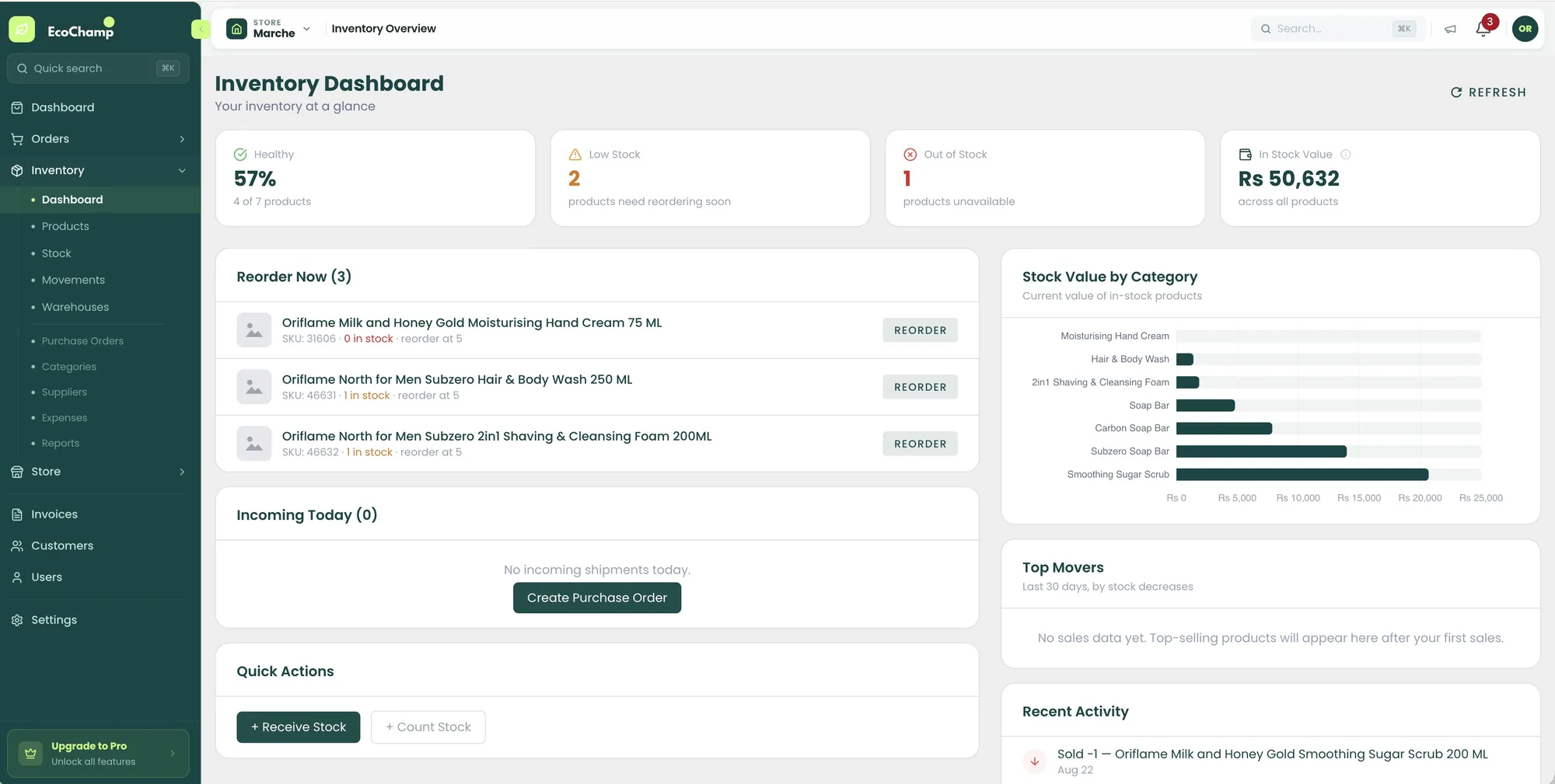
Stock by warehouse and batch
Each delivery of stock is its own batch, with a batch number (type your own or EcoChamp generates one) and an optional expiry date, in the warehouse it went to.
- 2
Purchase orders
Order from suppliers with a purchase order: costs, discounts, tax %, and a batch number and expiry per line. Stock is added when you approve it.
- 3
Every change recorded
Stock history logs each change and who made it, including manual edits and transfers between warehouses.
- 4
Import from Excel
Bring existing stock in from an Excel or CSV file instead of typing it in.
What you get
- See stock per product, variant, batch and warehouse
- Know which batches expire soon
- Purchase orders that add stock on approval
- A full history of who changed what
FAQ
Questions about inventory with batch & expiry
Still unsure? Ask us on WhatsApp. A real person replies.
Do I have to enter batch numbers?
No. Leave it blank and EcoChamp generates one. Type your own when the supplier gives one.
Does it handle variants like shades and sizes?
Yes. Stock is kept per variant, so each shade or size has its own count.
Can I have more than one warehouse?
Yes. Stock is kept per warehouse, and you can transfer between them.
How do I bring in my current stock?
Import it from an Excel or CSV file using the template, or add it product by product.
Also in EcoChamp
Profit & loss
Profit & loss for your online store: sales, cost of goods, shipping margin and expenses, for one store or all stores combined.
Learn more ›Bulk courier booking
Book Leopards, PostEx, Rocket, M&P or Tranzo straight from your Shopify and WooCommerce orders, in bulk. Print labels and dispatch sheets.
Learn more ›COD reconciliation
Import your courier’s COD payment file and EcoChamp marks every invoice paid. See unmatched rows with the reason, and what is still owed.
Learn more ›